
How to Register Nagarik App is a simple process that allows you to access essential government services from the comfort of your home. Are you tired of standing in long queues at government offices for simple tasks like paying vehicle tax or checking your PAN details? The Nepal Government launched the Nagarik App to make these services accessible from your smartphone. In this 2026 complete guide, we will walk you through everything you need to know to register for the Nagarik App and simplify your digital life.
Watch Video Tutorial
What is Nagarik App?
The Nagarik App is a digital platform launched by the Government of Nepal to bring essential government services directly to citizens’ smartphones, making public service delivery more efficient and hassle free.
Features of Nagarik App:
- Online PAN Number Registration: Apply for and retrieve your Permanent Account Number instantly. If you’re planning to apply for a new PAN, we’ve already published a complete step-by-step guide on How to Register PAN Card Using Nagarik App. You can follow that guide to complete your PAN registration easily.
- Vehicle Tax Details and Renewal: Check your vehicle tax status and renew it directly through the app.
- Information about Land Ownership and Revenue: Access details regarding land ownership and property taxes (Malpot).
- Opening a Bank Account Online: Easily open a bank account using digital KYC verification.
- Health Insurance Details: View and manage your Health Insurance Board records.
- Police Clearance Report: Apply for and download your Police Clearance Report online.
- Access to Citizen Investment Trust (CIT): Manage your accounts in the Nagarik Lagani Kosh.
- Viewing Personal Records: Access digital copies of your citizenship, passport, educational documents, and National ID. Once your National Identity Card is issued, you can also download its digital version (eNID). Check our detailed guide on How to Download National Identity Card eNID for the complete process.
- Easy Access to ‘Hello Sarkar’: Submit your grievances and complaints directly to the government.
- Local Government Information: Get real-time updates and contact details for your local municipalities and wards.
- Public Service Commission Support: Extremely useful for applying for Lok Sewa Aayog examinations and verifying credentials.
- National Identity (NID) Integration: Link and manage your National ID card for centralized authentication.
- Enhanced Digital Payments: Pay traffic fines (E-challan) and local government taxes directly within the app.
- QR-Based KYC Verification: Use QR codes for faster form filling and auto-validation of identity across different services.
- Downloadable Documents: Generate and download official PDFs for PIS (Personnel Information System) and Public Service Commission admit cards.
- Real time Traffic Violation Tracking: Digital tracking and verification of traffic fines using QR scanning by traffic police.
Criteria for Using Nagarik App:
- One must be a Nepali citizen.
- One must have a mobile number registered under his/her name.
- Valid Identification Document (Citizenship, Voter ID or Passport.
Benefits of Registering for the Nagarik App
- Time Saving: You no longer need to wait in long queues for hours; most services can be completed in just a few minutes using your smartphone.
- Online Government Services: Access a wide range of government services, including tax payments and form submissions, from the comfort of your home.
- Easy Verification: The app simplifies the verification process for various government services by retrieving your data directly from official databases.
- No Need to Visit Office: By digitalizing document access and payment systems, you avoid the hassle of visiting government offices in person, regardless of the weather or traffic conditions.
- Digital Documents: You gain instant digital access to your official records, such as your citizenship, passport, and educational certificates, reducing the risk of losing physical copies.
How to Register Nagarik App?
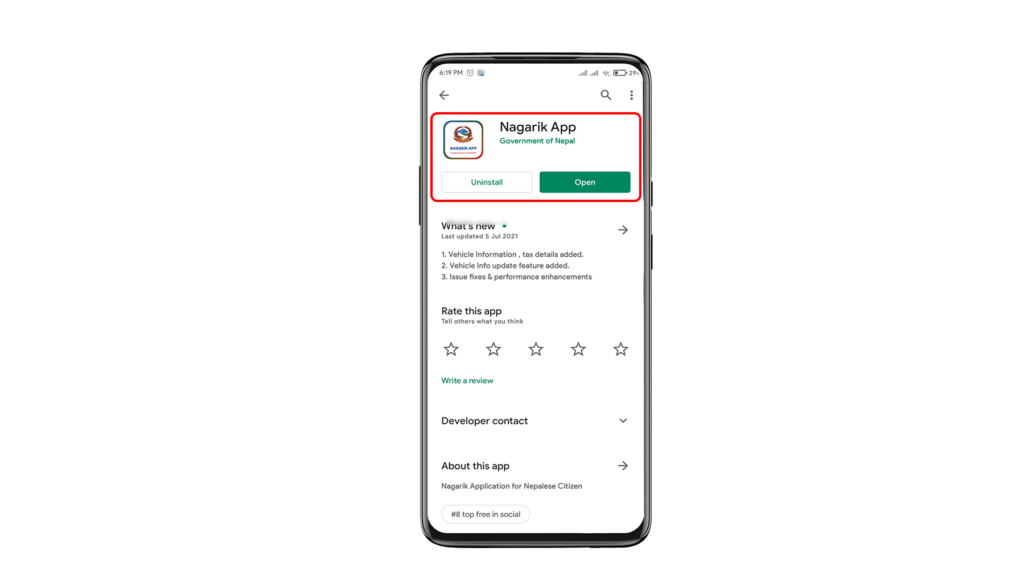
You can easily download and register Nagarik App through Playstore or Apple store. Follow these steps to download and register Nagarik App.
1. Download and Install nagarik App.
Click Here to Download from Play Store.
Click Here to Download from Apple Store.
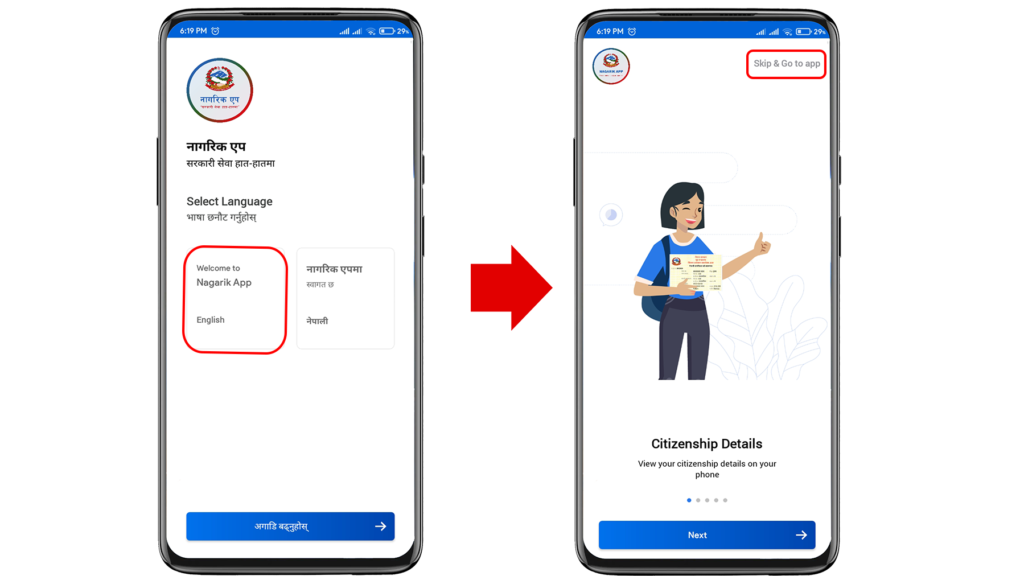
2. Select the Language and tap on the “Skip and Go to App’ option.
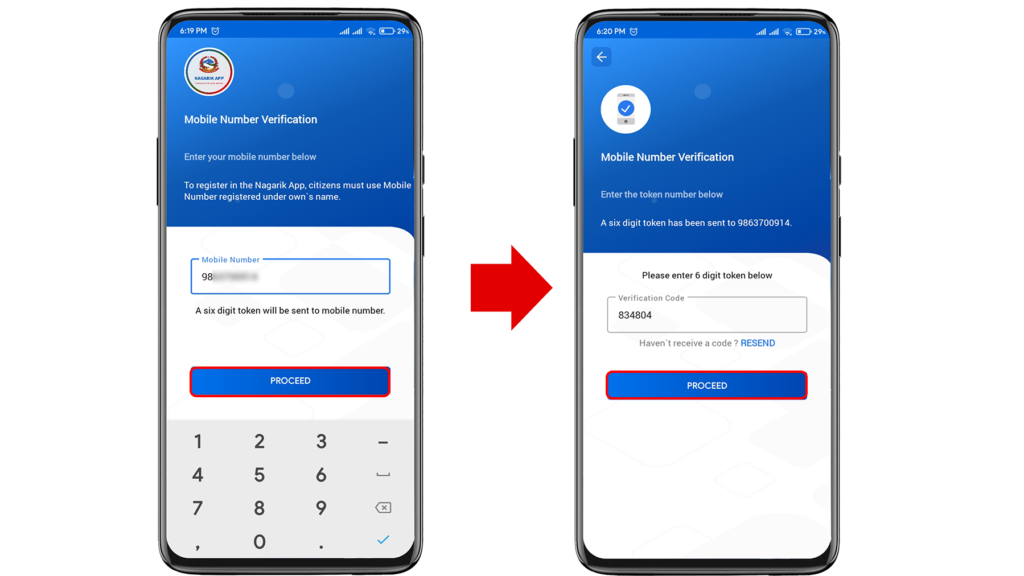
3. Enter your Mobile Number and Varify the six-digit code to proceed.
4. Check the identification details of your citizenship, Voter ID or passport.
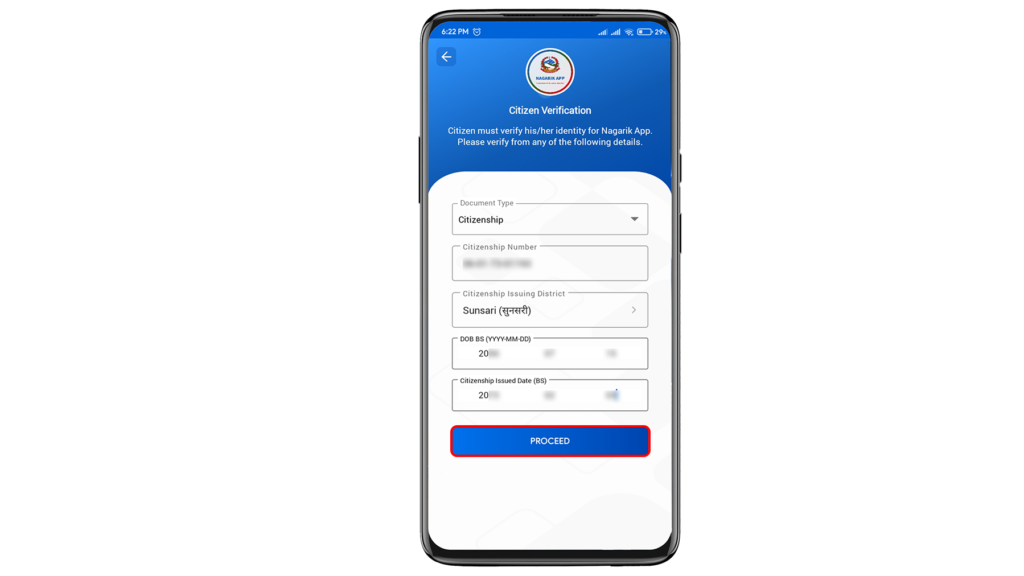
5. Varify the details given and make necessary correction if needed.
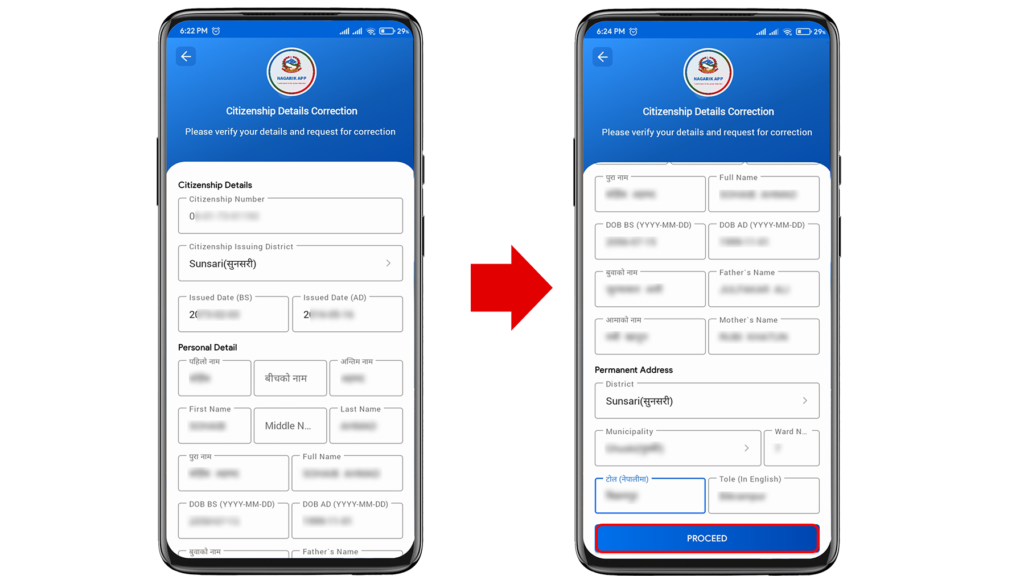
6. Set the 4-digit pin code and tap on ‘Proceed’ to complete the registration process.
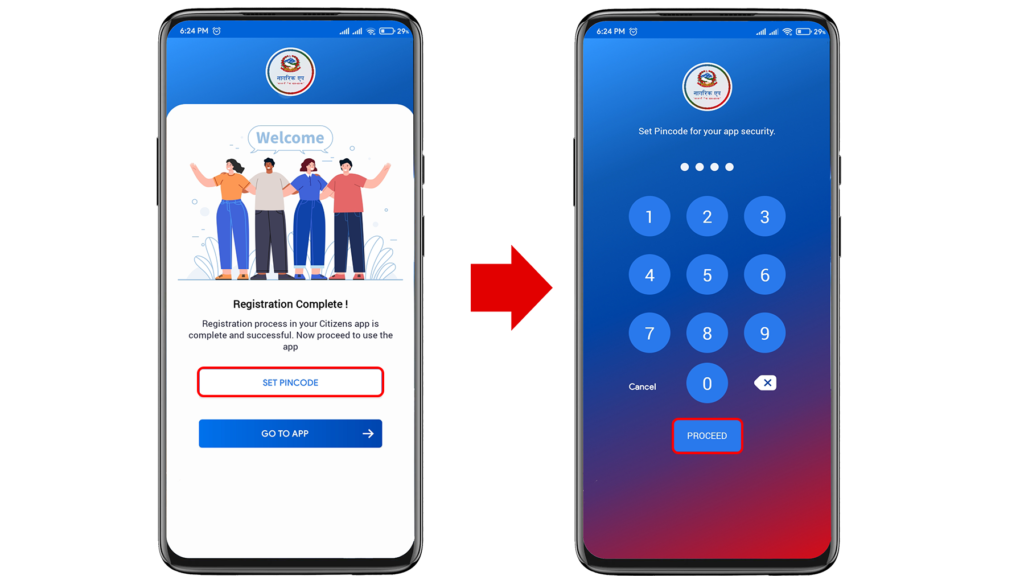
7. You can check different services of the app from the dashboard.
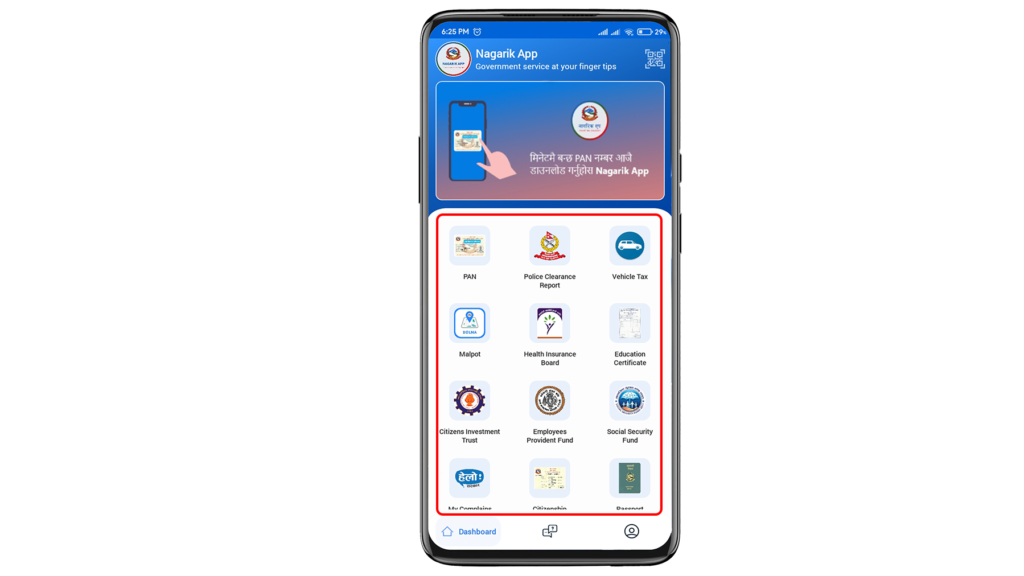
Popular Services of Nagarik App
- PAN (Lost your PAN number? No worries. You can easily recover it online by following our complete guide on How to Recover PAN Card Number in Nepal.)
- Police Clearance Report
- Vehicle Tax
- Malpot
- Health Insurance Board
- Education Certificate
- Citizen Investment Trust
- Employees Provident Fund
- Social Security Fund
- My Complains (Hello Sarkar)
- Citizenship
- Passport
- Voter Card (You can also verify your voter registration details online before using voter-related services. Follow our guide on How to Check Your Name in the Voter List for the complete process.)
Tips Before Registration
To ensure a smooth registration process for the Nagarik App, consider the following tips:
- Ensure SIM Ownership: The SIM card inserted in your smartphone must be registered in your own name at the telecom office. Not sure whether your SIM card is registered in your own name? Read our guide on How to Check SIM Ownership Name in Nepal before starting the registration process.
- Keep Documents Handy: Have your citizenship certificate, passport, or national ID details ready, as you will need to enter information that matches official records exactly.
- Check Internet Stability: Use a stable Wi-Fi or mobile data connection to avoid interruptions during the process.
- Choose the Right Environment: Find a well-lit area with a plain background for the face verification step to ensure the scan is successful.
- Update the App: Always download the latest version of the Nagarik App from the official Google Play Store or Apple App Store to avoid bugs or crashes.
- Verify Personal Details: Double-check your spelling and date of birth, as even a minor mismatch with government records can lead to verification failure.
Common Problems While Registering Nagarik App
Many users face technical difficulties during the registration process. If you encounter any of these issues, here is what you need to know:
- OTP Not Received: This often happens due to network delays or if your mobile number is not registered with the correct service provider. Wait for a few minutes before requesting a new code.
- Citizenship Verification Failed: This occurs if the details you entered do not perfectly match the official records in the government database. Double-check your citizenship number and date of birth.
- Mobile Number Already Used: This means the mobile number is already linked to another Nagarik App account. Ensure the SIM is registered under your own name, as the app strictly validates ownership.
- Face Verification Failed: Ensure you are in a well-lit area with a plain background. Keep your face steady within the frame and avoid wearing glasses or hats during the scan.
- Server Busy: As this is a government system, high traffic can sometimes lead to server timeouts. It is best to try registering during off-peak hours (e.g., early morning or late night).
- Document Doesn’t Match: This error arises when there is a mismatch between the documents uploaded or fetched and the information provided during the initial signup phase.
- Camera Permission Error: Before starting the face verification, ensure that you have granted the Nagarik App permission to access your camera in your phone’s ‘Settings’ menu.
- App Crashing: If the app closes unexpectedly, clear your app cache, check for available updates in the Play Store/App Store, or restart your device.
- PIN Not Working: If your 4-digit PIN is not being accepted, use the “Forgot PIN” option to reset it. Ensure you are not mistaking it for the OTP code.
How to Fix Nagarik App Registration Problems
If you encounter any issues during the registration process, follow these troubleshooting steps to resolve them:
- Check Network Connection: Always ensure you are in an area with a stable internet connection or strong mobile data before starting the registration process.
- Verify SIM Ownership: Ensure that the SIM card in your mobile device is registered under your own name, as the app will not allow registration if the mobile number is registered to someone else.
- Improve Lighting for Face Scan: If face verification fails, move to a well-lit area, remove any glasses or hats, and keep your face steady within the camera frame.
- Re-check Document Details: If you receive a “Document Doesn’t Match” or “Citizenship Verification Failed” message, carefully re-enter your details, ensuring your name’s spelling and citizenship number match official government records.
- Clear App Cache: If the app crashes frequently, go to your phone’s settings to clear the “App Cache,” or try uninstalling and reinstalling the app.
- Grant Permissions: Make sure you have granted the app permission to access your “Camera” and “Storage” in your phone’s settings.
- Use Off-Peak Hours: If you encounter a “Server Busy” message, try registering during off-peak hours (early morning or late evening) when server traffic is lower.
- Reset PIN: If your 4-digit PIN is not being accepted, use the “Forgot PIN” option within the app to create a new one.
- Contact Official Support: If the issue persists, you can call the official helpline at 1101 or send an email to helpdesk@nagarikapp.gov.np for further assistance.
Is Nagarik App Safe to Use?
Yes, the Nagarik App is considered safe to use as it is an official platform developed and regulated by the Government of Nepal. Here is a brief explanation of why it is secure:
- Official Government Regulation: As an official application, it is maintained by the Ministry of Communication and Information Technology, ensuring that data is handled according to government standards.
- Encrypted Data: Personal information is transmitted and stored using encryption, which protects your sensitive data from unauthorized access.
- Secure Authentication: The app requires a 4-digit PIN for every login and transaction, providing an essential layer of security.
- OTP Verification: Every registration and major action requires a one-time password (OTP) sent to your registered mobile number, ensuring that only the verified owner can access the account.
- Centralized Database: Unlike third-party apps, it retrieves information directly from official government databases, minimizing the risk of data manipulation or fraud.
Frequently Asked Questions (FAQ)
1. How do I verify my Nagarik App account?
After entering your mobile number and personal details, you need to complete the identity verification process using your citizenship or another supported document. Once your details are verified, your Nagarik App account will be activated.
2. Why am I not receiving the OTP in Nagarik App?
If you are not receiving the OTP, make sure you are using the mobile number registered in your own name and have a good network connection. You can request a new OTP after a few minutes. If the issue continues, try again later, as the server may be busy. Also, make sure the SIM card is registered in your own name. If you’re unsure, check our guide on How to Check SIM Ownership Name in Nepal.
3. What should I do if face verification fails in Nagarik App?
Face verification may fail if the lighting is poor, your camera is not clear, or your face does not match the photo on your citizenship document. Try again in a bright place and keep your face clearly visible during the verification process.
4. How can I fix Nagarik App login problems?
First, check that you are entering the correct mobile number and PIN. If you have forgotten your PIN, use the Forgot PIN option to reset it. Also, make sure you are using the latest version of the Nagarik App.
5. How do I reset my Nagarik App PIN?
Open the Nagarik App and tap on Forgot PIN. Complete the required identity verification steps, then create a new 4-digit PIN to access your account again.
6. Why did my Nagarik App registration fail?
Registration may fail because of incorrect personal information, document mismatch, face verification issues, or temporary server problems. Check your details carefully and try again after some time.
7. How can I update my mobile number in Nagarik App?
If you want to change your registered mobile number, you may need to follow the official update process provided by the Nagarik App or the concerned government authority. Make sure the new mobile number is registered in your own name.
8. Can I use Nagarik App without citizenship, and how long does verification take?
You need a valid Nepali citizenship certificate or another supported government-issued document to complete registration. Verification is usually completed within a short time, but it may take longer if additional verification is required.
Related Government Guides
- How to Register PAN Card Using Nagarik App
- How to Recover PAN Card Number
- How to Download National Identity Card eNID
- How to Check Your Name in the Voter List
- How to Check SIM Ownership Name in Nepal
Conclusion
Registering the Nagarik App is a simple process if you have the required documents and a mobile number registered in your own name. Once your account is verified, you can access many government services online without visiting different offices. We hope this 2026 guide helped you understand the complete registration process. If you face any issues while registering or verifying your account, let us know in the comments, and we’ll do our best to help. Also, don’t forget to watch our video tutorial for a complete step-by-step demonstration.