

Let’s be honest. Most of us have a collection of photos we aren’t completely happy with. In this guide, we will use the best Gemini prompts for photo enhancement to fix and improve your images easily. Blurry shots, dark images, and old scanned pictures that look faded and rough fill our galleries. Deleting them feels wrong, but they just sit there, looking sad. Here’s something many people don’t know: Google Gemini AI can help you fix all of that, and all you need is the right prompt. No Photoshop, no expensive apps. Just you, your photo, and a few words typed into Gemini.
What is a Gemini Prompt?
A Gemini prompt is just a way to instruct AI. The clearer and more detailed your prompt is, the better the outcome you’ll get. These Gemini prompts for photo enhancement are designed to improve image quality without manual editing.
What can Gemini do to your photos?
Using the right Gemini prompts for photo enhancement can make a huge difference in your final result.
1. Sharpen blurry or out-of-focus photos
2. Improve brightness and contrast in dark images
3. Restore old or scanned photos that look faded
4. Increase overall image clarity and detail
5. Suggest edits and describe possible improvements
It won’t replace a professional editor, but for everyday photos, it does a surprisingly great job.
How to Enhance Photos Using Gemini App
Google Gemini is an official AI app by Google. It is a powerful assistant and is completely free to use. You can download it on both Android and iPhone from the App Store or Play Store at no cost. Also, here is something worth knowing. Many Android phones come with the Google Gemini app pre-installed, especially newer Android devices. So before you go to the Play Store, check your phone first. You might already have it right there on your home screen or in your app drawer.
Below are the complete steps to download and install the Gemini app on both Android and iOS devices:
For Android:
1. Open the Google Play Store on your phone
2. Search for “Google Gemini”
3. Tap Install and wait for it to download
4. Once installed, tap Open to launch the app
For iPhone (iOS):
1. Open the Apple App Store
2. Search for “Google Gemini”
3. Tap Get to download and install it
4. Then tap Open to launch the app
That covers all the steps for downloading the app. Once the installation is complete, the next thing you need to do is sign in to the app using your Gmail account. If you already have a Gmail account, you can log in directly. If you don’t have one yet, you can quickly create a new Google account and then sign in. It only takes a couple of minutes.
Now let’s see how to use these Gemini prompts for photo enhancement step-by-step.
- First open the Google Gemini app on your phone
- Tap on the + (Attach) button
- Select your image from gallery
- Choose “Create Image” option (if shown)
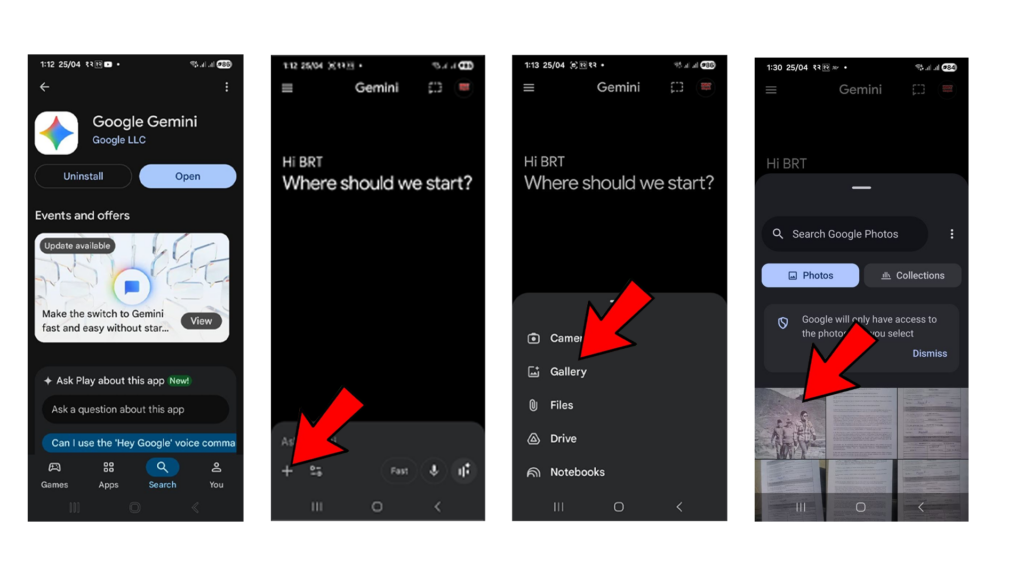
Copy this prompt and use it below
Enhance the portrait while strictly preserving the subject's identity with accurate facial geometry. Do not change their expression or face shape. Only allow subtle feature cleanup without altering who they are. Keep the exact same background from the reference image. No replacements, no changes, no new objects, no layout shifts. The environment must look identical.

The image must be recreated as if it was shot on a Sony A1, using an 85mm f1.4 lens, at f1.6, ISO 100, 1/200 shutter speed, cinematic shallow depth of field, perfect facial focus, and an editorial-neutral color profile.

This Sony A1 + 85mm f1.4 setup is mandatory. The final image must clearly look like premium full-frame Sony A1 quality.

Lighting must match the exact direction, angle, and mood of the reference photo. Upgrade the lighting into a cinematic, subject-focused style: soft directional light, warm highlights, cool shadows, deeper contrast, expanded dynamic range, micro-contrast boost, smooth gradations, and zero harsh shadows.

Maintain neutral premium color tone, cinematic contrast curve, natural saturation, real skin texture (not plastic), and subtle film grain. No fake glow, no runway lighting, no oversmoothing.

Render in 4K resolution, 10-bit color, cinematic editorial style, premium clarity, portrait crop, and keep the original environmental vibe untouched.

Re-render the subject with improved realism, depth, texture, and lighting while keeping identity and background fully preserved.

NEGATIVE INSTRUCTIONS:
- No new background.
- No background change.
- No overly dramatic lighting.
- No face morphing.
- No fake glow.
- No flat lighting.
- No over-smooth skin.
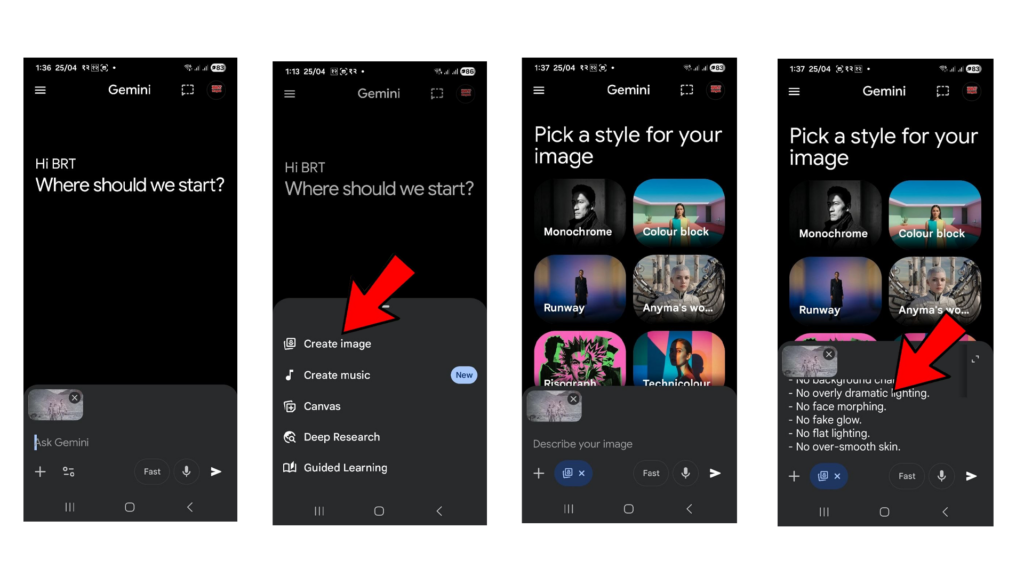
- Now paste your prompt in the chat box
- Tap on Send / Generate button
- Processing may take 5–10 seconds depending on your internet.
- Your photo will be enhanced automatically
- Download or save the final image
Enhance Photo Using Gemini on Desktop
- Open any browser (Chrome, Edge, etc.)
- Go to Google Gemini website
- Login using your Gmail account
- Click on upload/image icon
- Select your photo from computer
- Copy and paste the prompt
- Press Enter / Generate
- Wait few seconds for processing
- Right-click on the image and click “Save Image As”
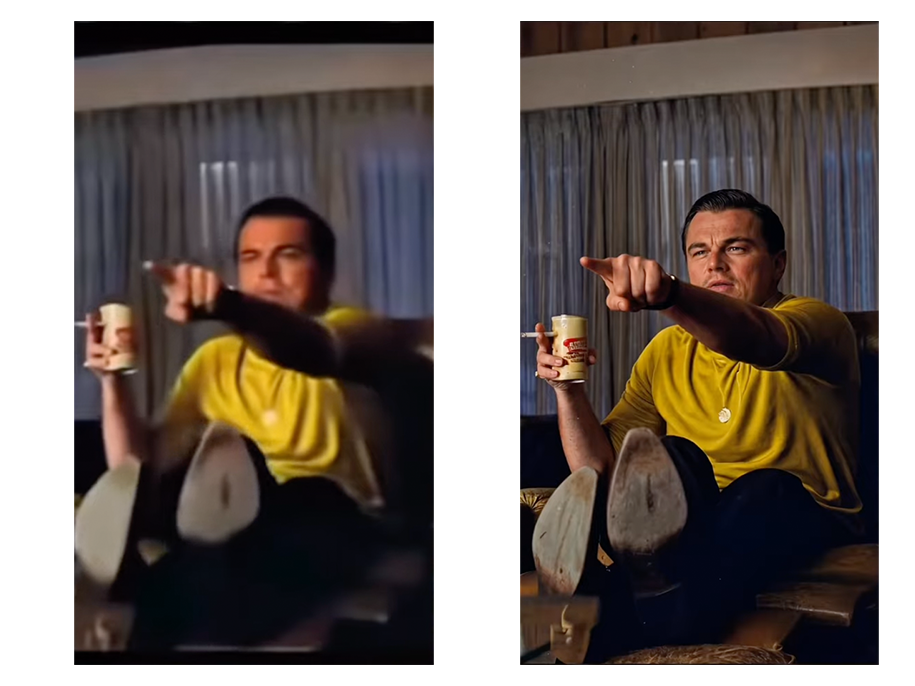
Now your photo will look more sharp, clear, and professional using AI.
See the Difference Before vs After Using AI Prompt

Related Guides
- How to Create and Verify eSewa Account
- How to Use Khalti Points
- How to Check MDMS Registration of a Phone
Conclusion
These Gemini prompts for photo enhancement work great for both beginners and content creators. Improving your photos has never been simpler with AI tools like Gemini. You no longer need complicated Photoshop skills or spend hours editing. Now, you can get professional results with just a click. Just copy the right prompt, upload your image, and see how the AI changes your visuals in seconds. Whether you create content or just want better memories, this is a true game-changer for everyone.
1. Is Google Gemini free to use for photo enhancement?
Yes, Google Gemini offers a free version that you can use to enhance photos using prompts. However, there may be some usage limits or feature restrictions depending on your account and usage. For advanced features or higher limits, a paid plan may be required.
2. Can I use Gemini on both mobile and desktop?
Yes, you can use Gemini on Android, iPhone, and also on desktop using a web browser.
3. Does Gemini change my face or identity?
No, if you use the correct prompt, it will only enhance your photo without changing your face or identity.